
SkaiLab
Why use Manus?
💡 How to read this guide:
- if you are a manager → start with the examples in this section\
- if you want a quick start → go to “How to work with Manus”\
- if you are deploying it for a team → see “Organising enterprise use of Manus”
A modern AI chat is a consultant that gives advice. You write a prompt, it answers, you copy the result and use it manually. Each next step requires returning and writing another prompt. It is useful, but it still takes your time.
By 2026, most teams are familiar with AI. They use ChatGPT for writing, Claude for document analysis, and Copilot or Cursor for development. It helps to establish where Manus fits and why it belongs to a different class of tools.
Tool;What it is and its limitations
ChatGPT / Claude / Gemini;Conversational AI. Strong at text generation and analysis. Prompt → answer. The tool supports people without replacing their actions; every step requires involvement. Claude Code/ Antigravity / Cursor;AI development assistants. Code completion in an IDE. Work alongside an engineer rather than autonomously. Not applicable beyond code. An autonomous agent for engineering tasks: writes, tests and refactors code through multiple steps. An agent, but focused strictly on development rather than business operations. Manus;A general-purpose autonomous agent. Works with browsers, email, files, CRMs, spreadsheets and other tools. Similar in principle to Claude Code, but for managers’ and teams’ operational and analytical tasks.
Comparison: chat vs agent
Feature;ChatGPT / Claude / Gemini conversational AI;Manus autonomous agent
How it works;Conversation. One prompt, one answer. A person guides every step.;Once given a goal, the agent plans and completes every step to deliver the result. Does it need your presence?;Yes, continuously. Each next step needs your prompt.;No. Start it and leave. The result is prepared without you. Browser and web;Limited search through a plugin. Cannot click, fill forms or navigate.;A full browser: opens sites, clicks buttons, fills forms and downloads data. File handling;Up to 15/20 files at a time. Must be uploaded manually each time.;100+ files in context. Retained between sessions. Reads any format. Parallel work;Sequential: one step, one answer.;Several agents work in parallel. 100+ sources simultaneously.; Telegram integration;Only through third-party solutions.;Native: a Manus bot in Telegram, with notifications, confirmations and task management directly in the messenger. Recurring tasks;No. Manually enter the prompt each time.;Scheduled tasks: configure once, then run daily, weekly or on another schedule. Output;Text, analysis or a draft; you do the remaining work.;A finished file, completed spreadsheet, sent email or published post.
Manus is not a model of its own; it orchestrates existing models. Under the hood it uses:
- Anthropic Sonnet — the main reasoning model
- Alibaba Qwen — supplementary tasks, including code and local operations
Practical examples:
Where Manus actually saves time
Manus’s main value is recurring workflows, which can now be automated by setting up recurring tasks.
🔁 Autonomous and recurring tasks
1. A scheduled daily digest in Telegram
Prompt: “Every morning at 8:00, collect news about our industry and competitors’ market and send it to me in Telegram.”
What Manus does: Set up the recurring task once. The agent starts automatically, scans 20–50 sources, filters for relevance and sends a formatted digest through a Telegram bot.
Result: The digest is on your phone when you wake up, every day, with no action required.
2. Competitor monitoring — an automatic report every Friday
Prompt: “Every Friday, analyse 5 competitors: price changes, new pages and publications. Send the report to our team’s Slack.”
What Manus does: Visits competitors’ websites, records changes since the previous week, generates a structured change report and publishes it in the appropriate Slack channel.
Result: The team gets an up-to-date market picture every week, without an analyst.
3. Incoming enquiry → brief → Telegram approval
Prompt: “When an email with a new enquiry arrives, check the client, prepare a brief and send it to me for approval in Telegram.”
What Manus does: Monitors Gmail. When an enquiry arrives, it researches the company, prepares a brief and sends it to Telegram with response options. It replies to the client only after you select “approve”.
Result: A funnel with minimal manual work: enquiry → Manus prepares → you approve in 2 clicks → the agent responds.
4. Emailed invoice → automatic Google Sheets row
Prompt: “When an invoice arrives by email, extract its data and add a row to our accounting spreadsheet.”
What Manus does: A scheduled task monitors Gmail. When it finds an invoice email, it opens the PDF attachment and extracts the invoice number, date, counterparty, amount, currency and payment deadline. Through the Google Drive connector, it adds a row in the correct accounting spreadsheet columns. If data is unreadable, it flags the row and sends a Telegram notification for manual review.
Result: The spreadsheet updates as invoices arrive. None get lost in the inbox, and the accountant avoids manual entry.
🔁 Big data analysis and research
5. B2B lead generation: find prospects matching your ICP
Prompt: “Describe our business model and B2B customer profile, then find 50 potential buyers with contact details.”
What Manus does: Researches LinkedIn, industry databases, Crunchbase and public sources, filters by your criteria and creates a table with contacts, company descriptions and reasons for relevance.
Result: A list of 50+ qualified leads with contacts and context in 1–2 hours, without an SDR.
6. Marketplace data analysis with visualisations
Prompt: “Here is our quarterly sales export from Ozon / Amazon. Find patterns, bottlenecks and growth opportunities.”
What Manus does: Loads the data file with 100+ rows, runs analysis scripts, creates charts and clusters SKUs by behaviour. It finds anomalies and patterns that pivot tables miss.
Result: An analytical report with ready-made visualisations and specific assortment recommendations.
7. Lost-deal analysis in CRM → dashboard
Prompt: “Open our CRM, export closed deals from the last 6 months, find patterns in losses and build a dashboard. I want to understand where we lose customers.”
What Manus does: Connects to CRM and exports lost deals for the period. It analyses reasons using CRM fields, segmenting by salesperson, funnel stage, average order value, lead source and timing. It identifies statistically significant patterns: common dropout stages, salespeople losing more deals and recurring objections. It builds an interactive dashboard with funnel dropout points, a salesperson heatmap and monthly trends.
Result: A complete analytical dashboard showing where and why the company loses money, without an analyst, manual exports or Excel pivot tables.
⚙️****Operational tasks and automation
📋 Interview scheduling for 40 candidates
An optimised schedule accounting for interviewer availability, time zones and priorities. What takes HR half a day takes Manus 15 minutes.
📊 Comparing deal terms
Upload 5–10 documents to receive a structured comparison table highlighting key terms and recommending the best option.
🏢 Database extraction: customer lists and registries
Navigates complex databases, applies filters, extracts required records and organises them in a table.
✉️ Personalised emails at scale
For each contact, researches the company and writes a personalised email: 50 unique outreach messages instead of one template.
🗺️ Automated meeting briefs
An hour before a meeting, the agent researches the company, recent news and participants’ LinkedIn profiles, then prepares a brief with questions and context.
🌐 Building a working web application from scratch
Manus can build a complete web application with authentication, a database and AI integration from a task description, without a developer.
These are only some examples. Once you start using Manus, you usually spot dozens of applications in your own business’s existing processes. The tool is flexible enough to adapt to different operational logic.
The most important step is therefore to start using it. Next, let us examine how Manus works internally and how to configure it for your needs.
How Manus works
You can start using Manus through this link
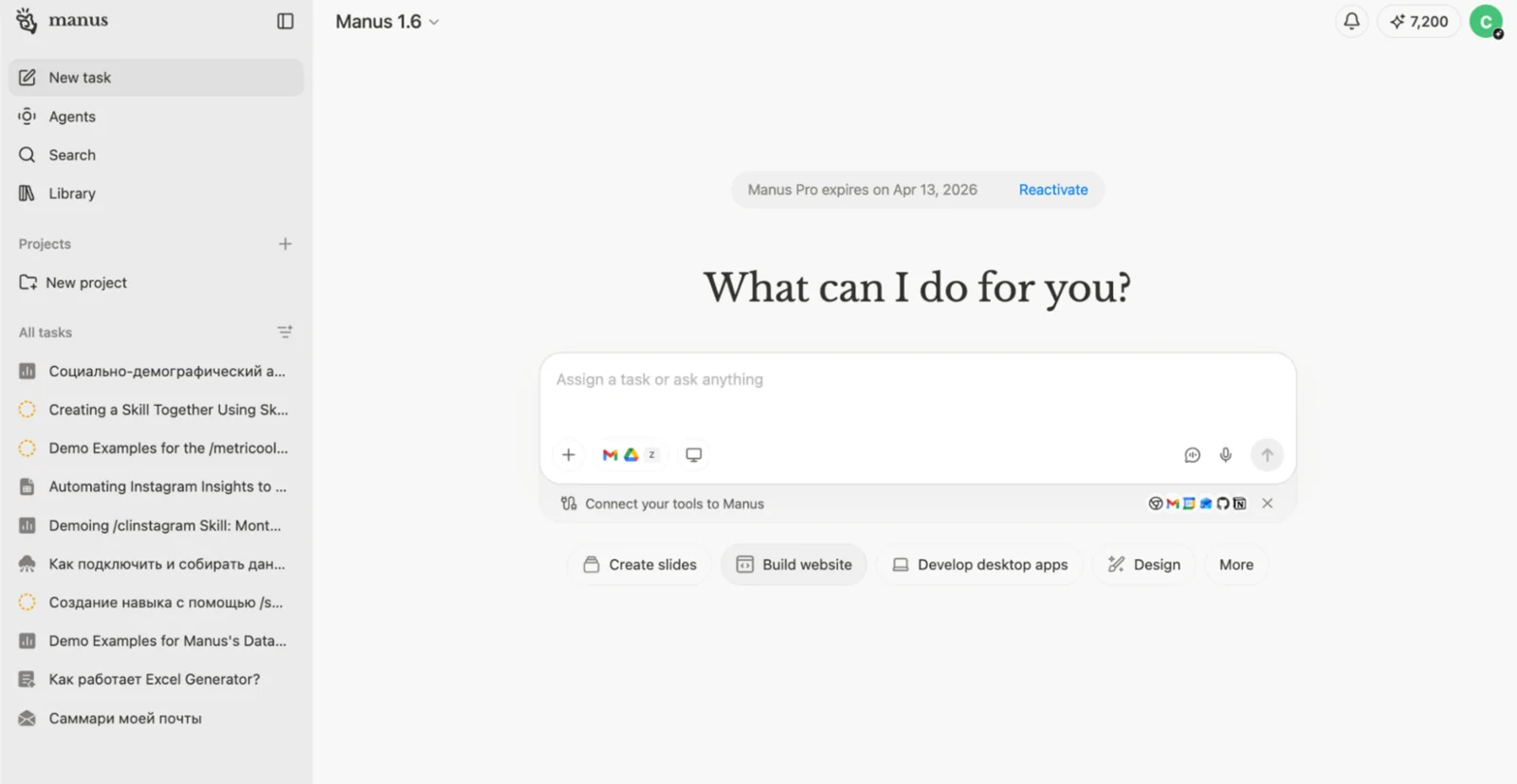
How to start a task:
- Open Manus and describe your task in natural language with as much detail as possible
- The agent displays a plan or to-do list, which you can adjust before starting
- Click “Start” and the agent begins working autonomously
- Follow progress in real time in the execution panel
- Receive the result when it finishes: a file, link or report
💡 Important:
Do not try to write the “perfect prompt”.
The right approach:\
- describe the task as you would to an employee\
- define the outcome\
- set constraints
Manus will build the execution plan itself.
❗ Important: in agent mode, Manus can perform irreversible actions such as sending emails, changing files and publishing data. Always define the task’s boundaries clearly.
Adding Manus to Telegram
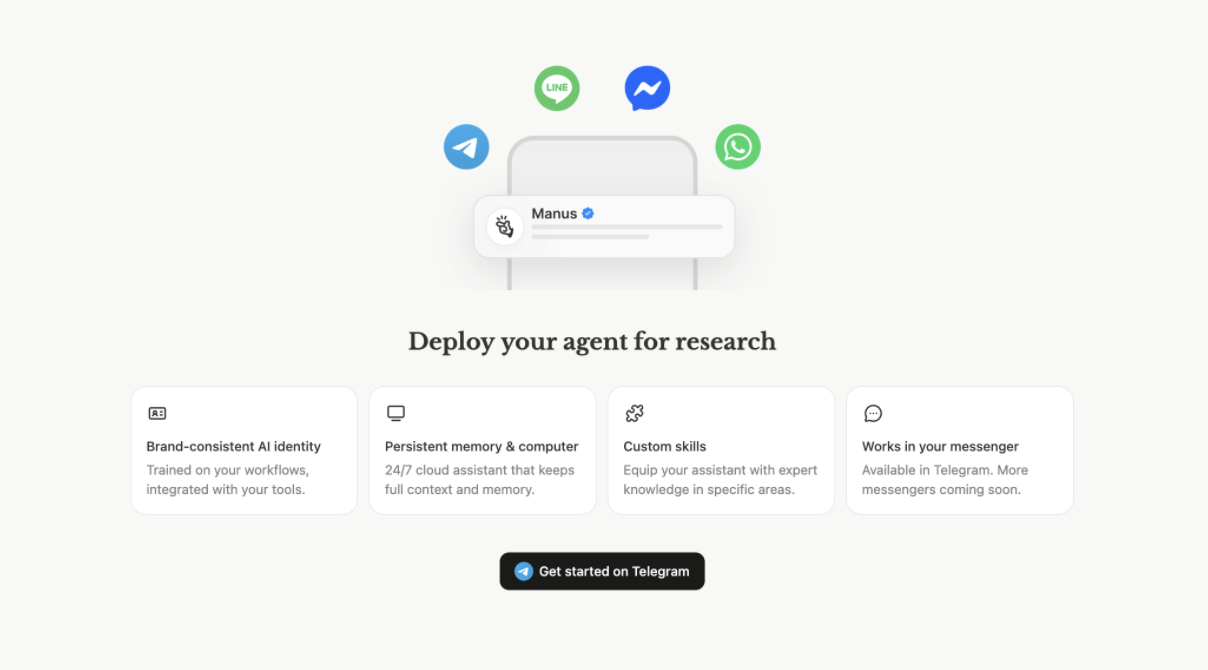
Manus can run as a Telegram bot, allowing you to use the agent directly in the messenger without opening a browser.
Telegram version benefits:
- Persistent memory & compute — the agent remembers context between conversations
- Brand-consistent AI Identity — can be configured for your brand
- Works in your messenger — available where you already work
To add it to Telegram:
- Open your Manus account settings
- Go to “Agent”
- Click “Get started on Telegram” to open a bot conversation
- Follow the bot’s authentication instructions
Connected apps
Without apps, the model knows only its training material and online information. Connectors give it access to:
- Your files and databases — Google Drive, Notion
- Real-time data — news, finance and markets
- Services — Trello, Google Drive, CRM and email
- Specialist tools — search, analysis and automation
Connectors in Manus
How to add or change app connections
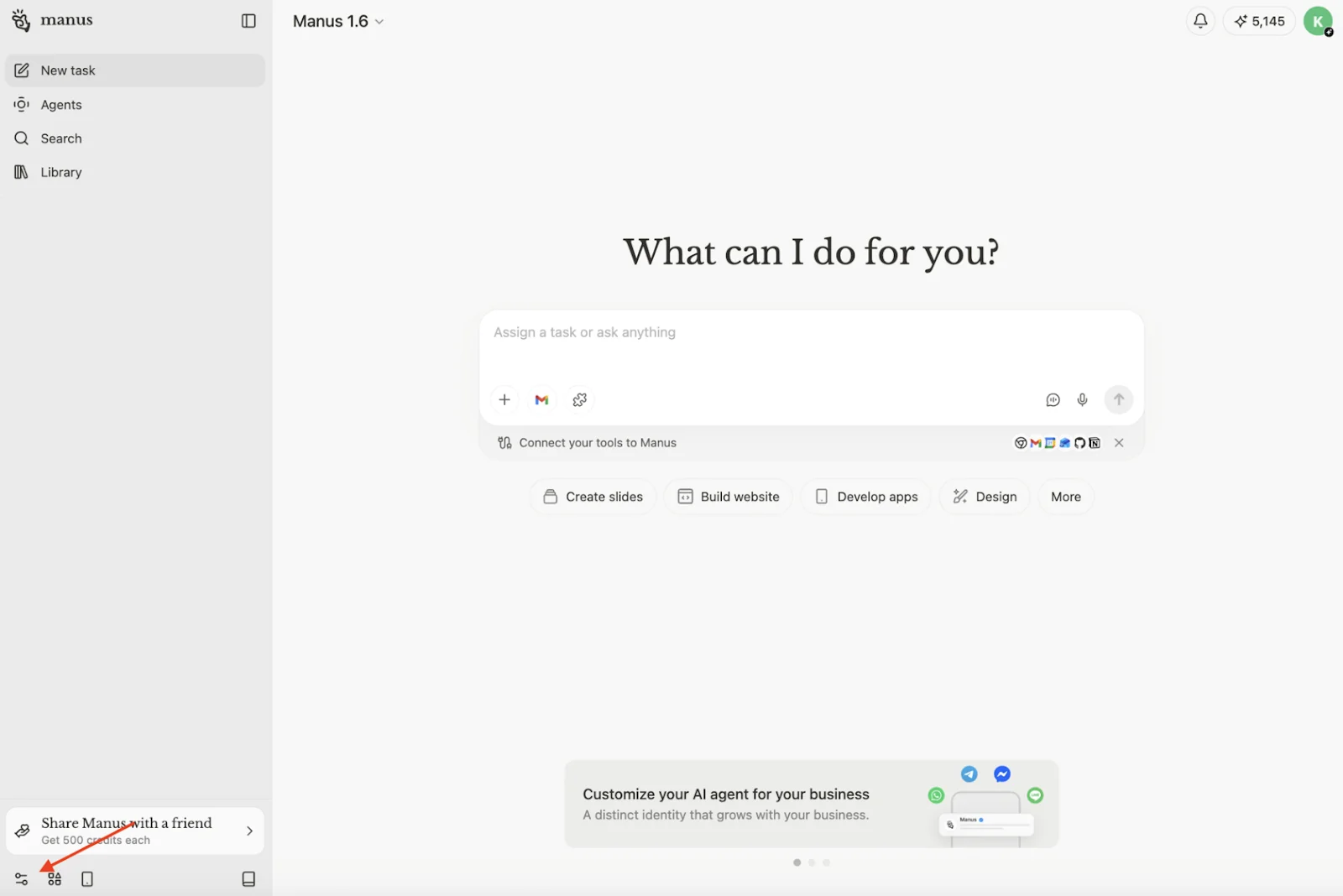
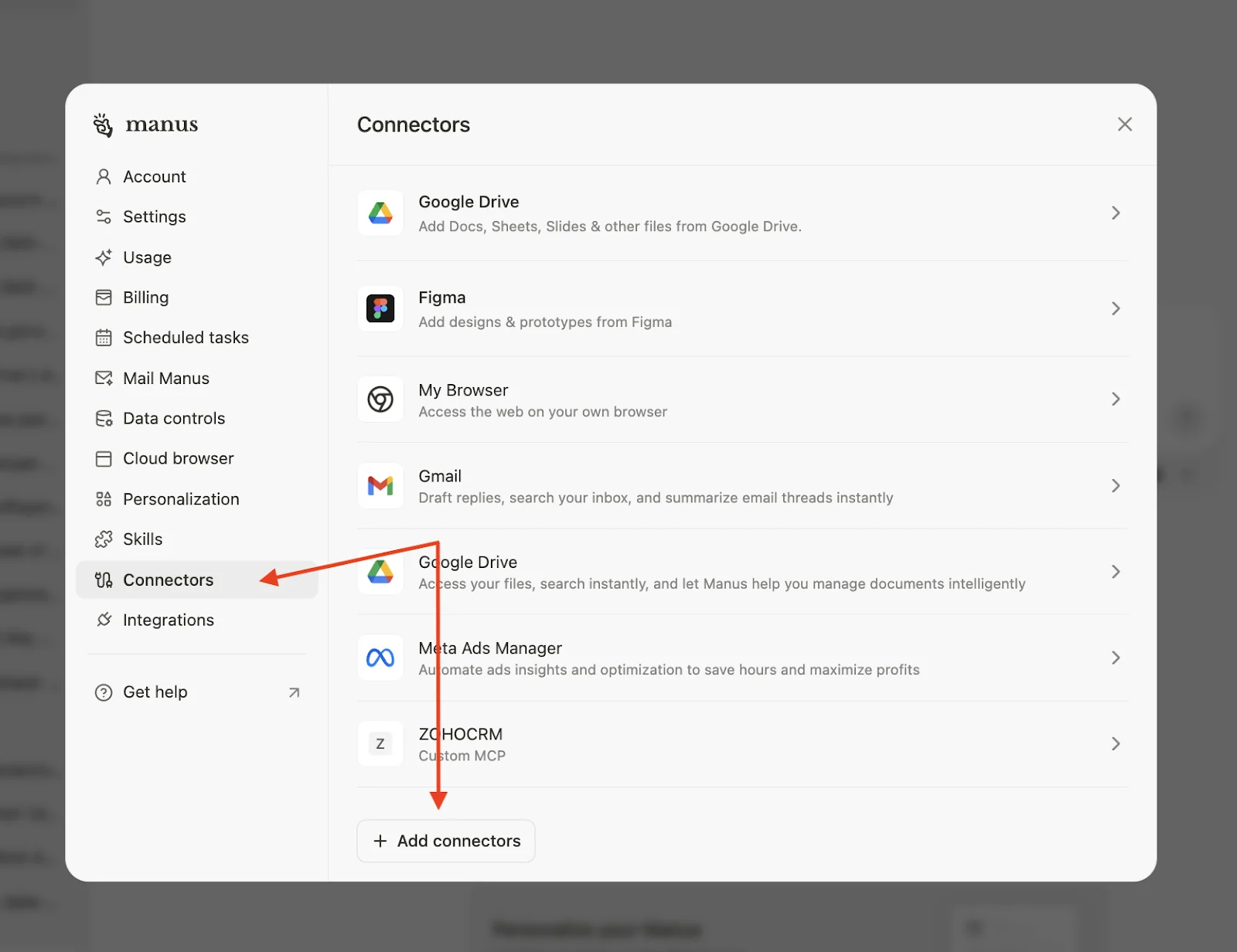
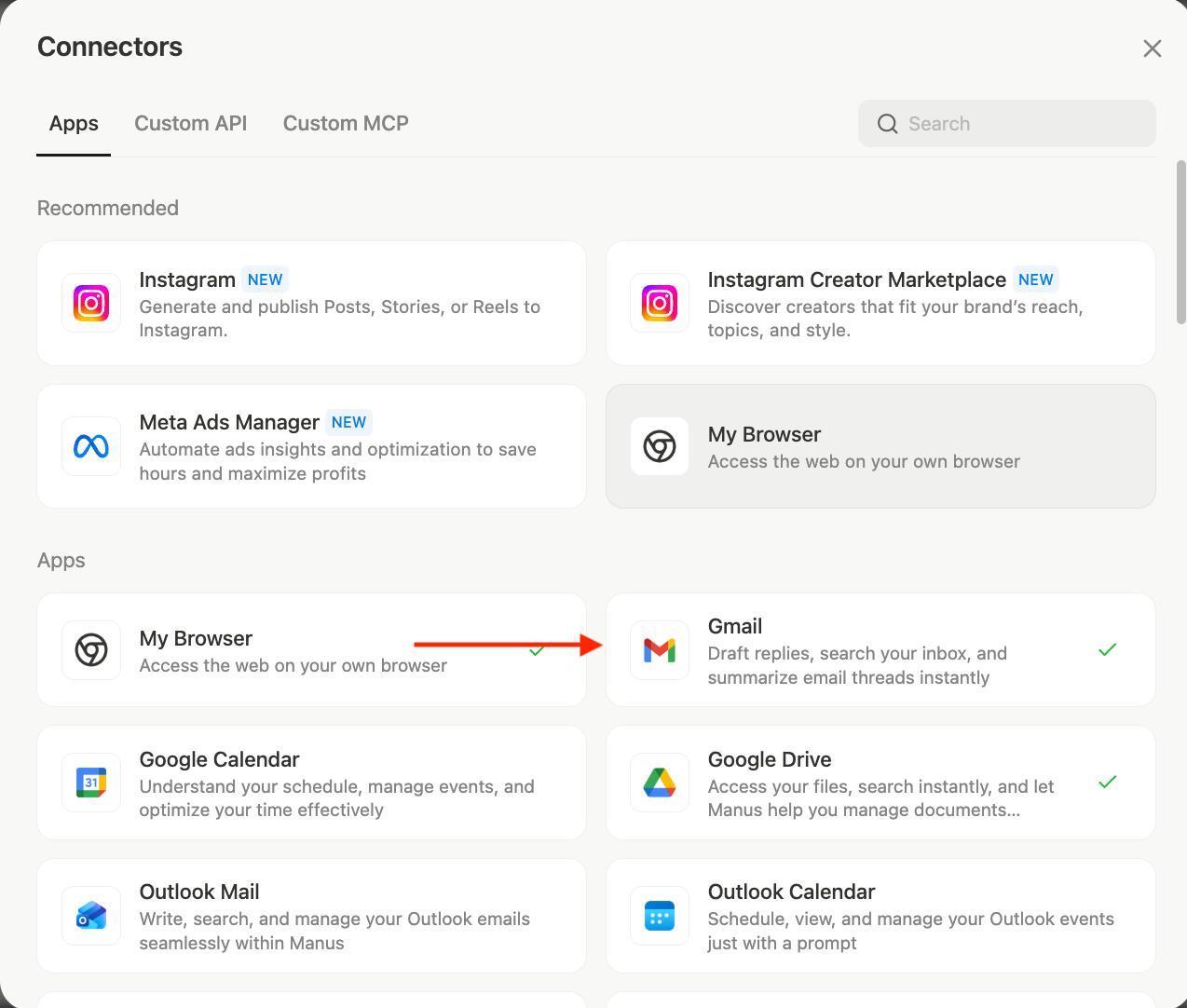
Manage connectors in Manus account settings. Each service takes 1–2 minutes to connect.
Adding a new connector
- Open the profile menu in the left panel and select “Connectors”
- Click “+ Add connectors”
- Select the service from the list
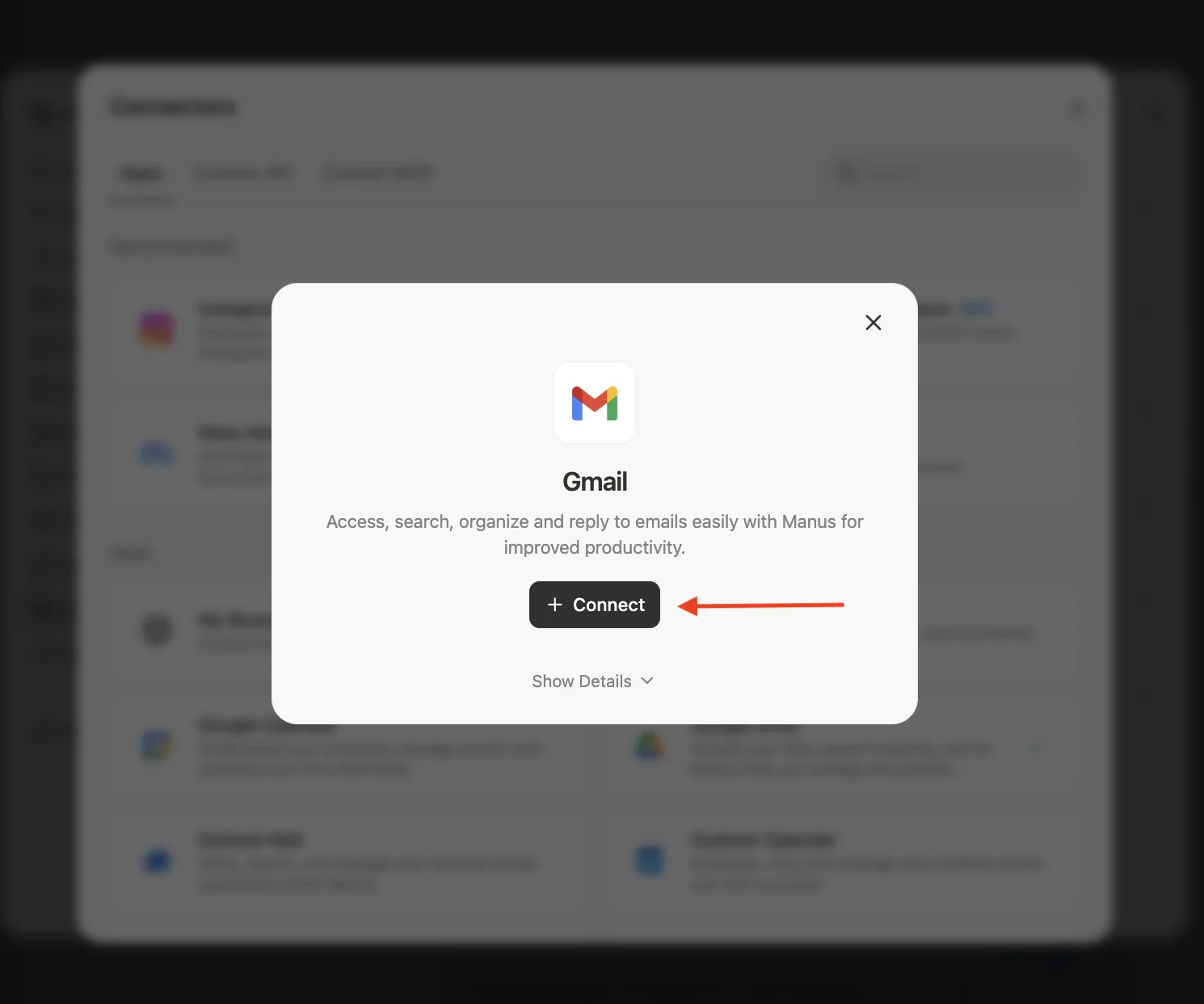
- Click “Connect” to open the service’s authentication window
- Grant Manus access to the required data
- The connector appears among active connections
Changing or disconnecting a connector
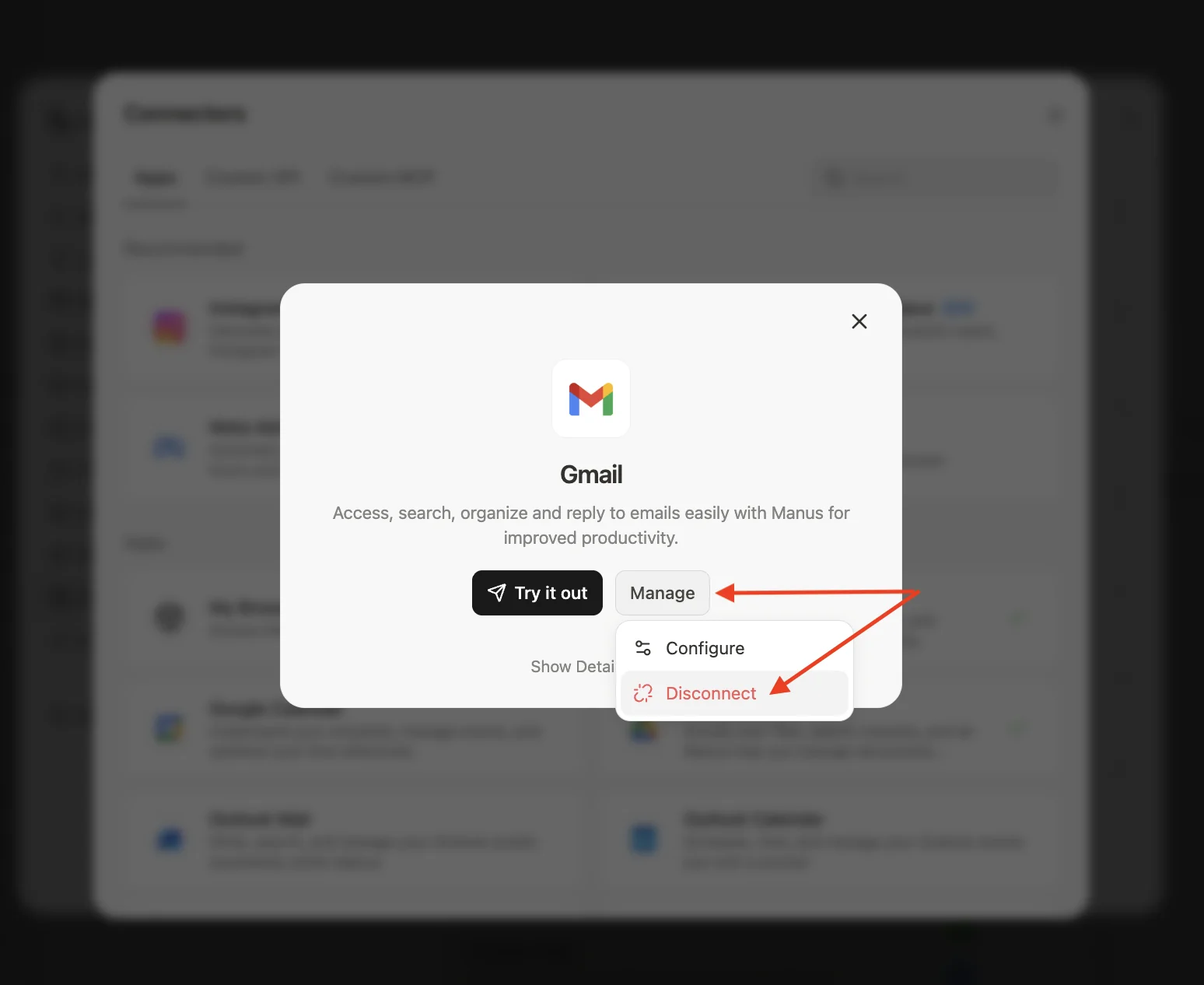
- Open “Connectors” in settings
- Find the connector in the list
- Click the arrow (>) on the right to open connection details
- To change permissions, click “Reconnect” and authenticate again
- To disconnect, click “Disconnect” or “Remove”
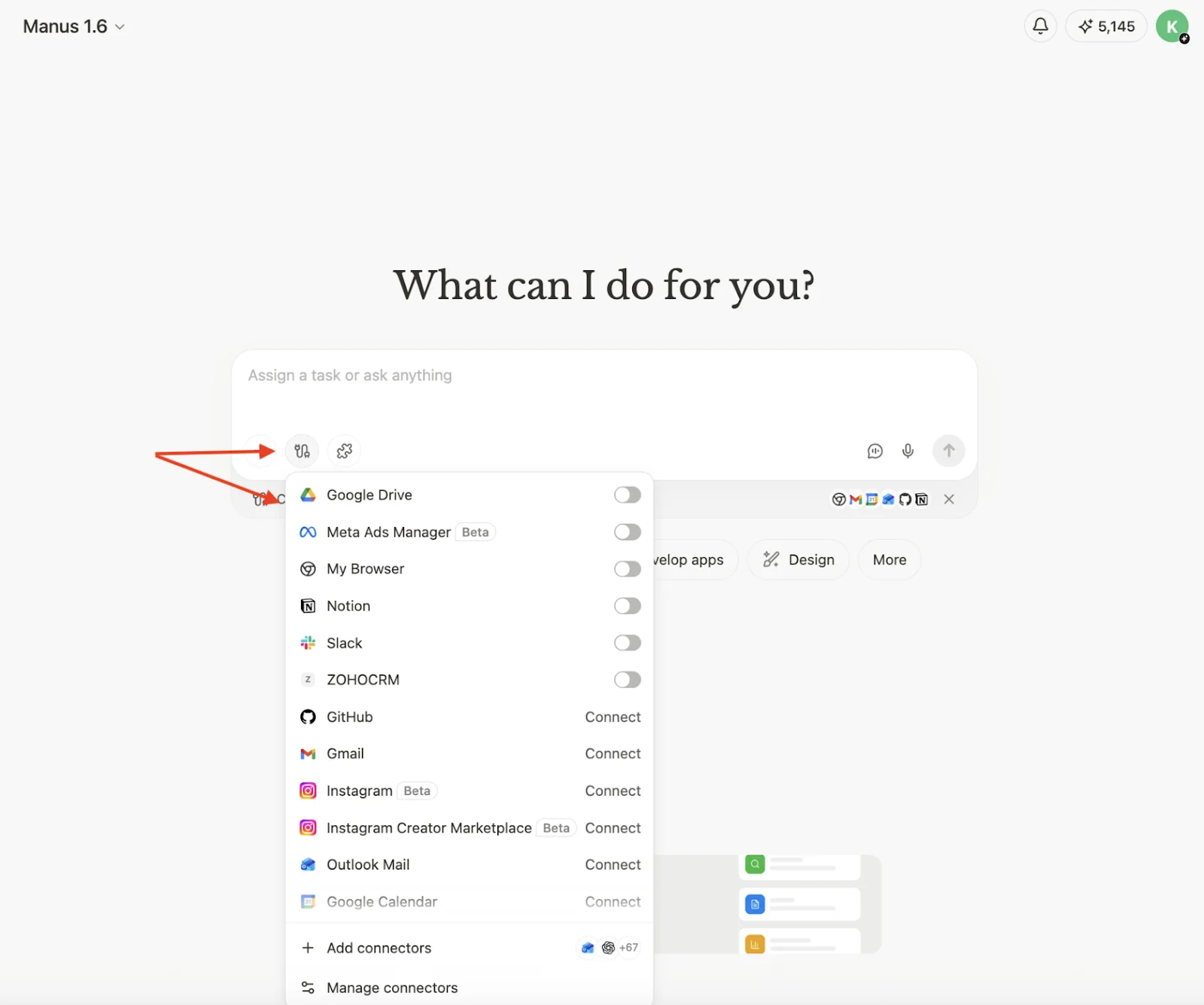
Connecting tools to a Manus task
Two connector states:
- Toggle — the service is already authorised; enable or disable it for this task. Google Drive, Meta Ads Manager, Notion and Slack work this way.
- “Connect” button — the service is not yet authorised. Click, complete OAuth and it will appear with a toggle. GitHub, Gmail, Instagram, Outlook and Google Calendar work this way.
💡 Common mistake:
The connector is connected but not enabled for the task.
Result: the agent cannot see the data.
Before starting, check:
are the required services enabled?
How it works:
Connectors are enabled per task, not globally. You can enable only Gmail and Google Drive for one task, and only Notion and Slack for another. The agent accesses only tools activated when the task starts.
If the required connector is not enabled before starting, the agent cannot use it even if the service is connected to your account. Switching on the toggle grants access for that session.
Controlling agent actions
Reversible and irreversible AI agent actions
When implementing AI agents in business processes, distinguish actions the system can perform independently from those requiring human involvement. This uses a division between reversible and irreversible actions and the Human-in-the-Loop (HITL) architectural principle.
AI actions in business processes can broadly be divided into two types:
- reversible actions — safe operations that are easy to correct;
- irreversible actions — operations that can create actual changes in systems or external communications.
This distinction helps determine where full automation is possible and where human oversight is needed.
Reversible actions
Reversible actions have no critical consequences and can be easily undone, corrected or checked again.
These tasks can usually be fully automated with AI.
Examples of reversible actions:
- preparing analytical reports;
- finding and collecting information;
- generating text and documents;
- analysing data;
- drafting emails without sending them;
- producing recommendations.
In these scenarios, AI improves efficiency, accelerates employees’ work and helps process large volumes of information.
Irreversible actions can produce actual changes in systems, communications or finances. Mistakes can have serious business consequences.
Examples of irreversible actions:
- sending emails;
- changing data in CRM, ERP or accounting systems;
- deleting data;
- publishing information on the company’s behalf;
- interacting with customers or regulators;
- financial transactions.
Full AI autonomy is not recommended in these situations because mistakes may create reputational, legal or financial risks.
The Human-in-the-Loop (HITL) principle
Human-in-the-Loop (HITL) is an architectural principle in which a person participates in decisions at critical stages of an AI system’s work.
AI performs the preparatory analytical work, while a person makes the final decision.
AI can:
- prepare an analysis;
- collect and organise information;
- suggest a decision;
- prepare an action.
A person gives final approval for the action.
This combines:
- AI speed and scalability
- human oversight and accountability
A typical Human-in-the-Loop process
A standard HITL AI workflow follows these steps.
-
The AI agent analyses data
The system collects, processes and organises information. -
AI proposes an action
This might be an email, a decision, a system data change or another action. -
The system requests approval
The notification can arrive through:
- the system interface
- Telegram
- corporate tools
- A person reviews the result
The person chooses one option:
- Approve
- Reject
- Edit
- The action runs after approval
The AI agent acts only after human approval.
When HITL is required
Human-in-the-Loop is needed whenever actions can affect the business, customers or the company’s legal obligations.
HITL is required for:
- external communications, such as customer emails and social media posts;
- data changes in production systems, including CRM, ERP and accounting;
- financial operations of any size;
- deleting or archiving data;
- preparing legally significant documents;
- any public action on the company’s behalf.
How HITL works in Manus.
In Manus, Human-in-the-Loop is implemented through task instructions and execution oversight rather than a separate module.
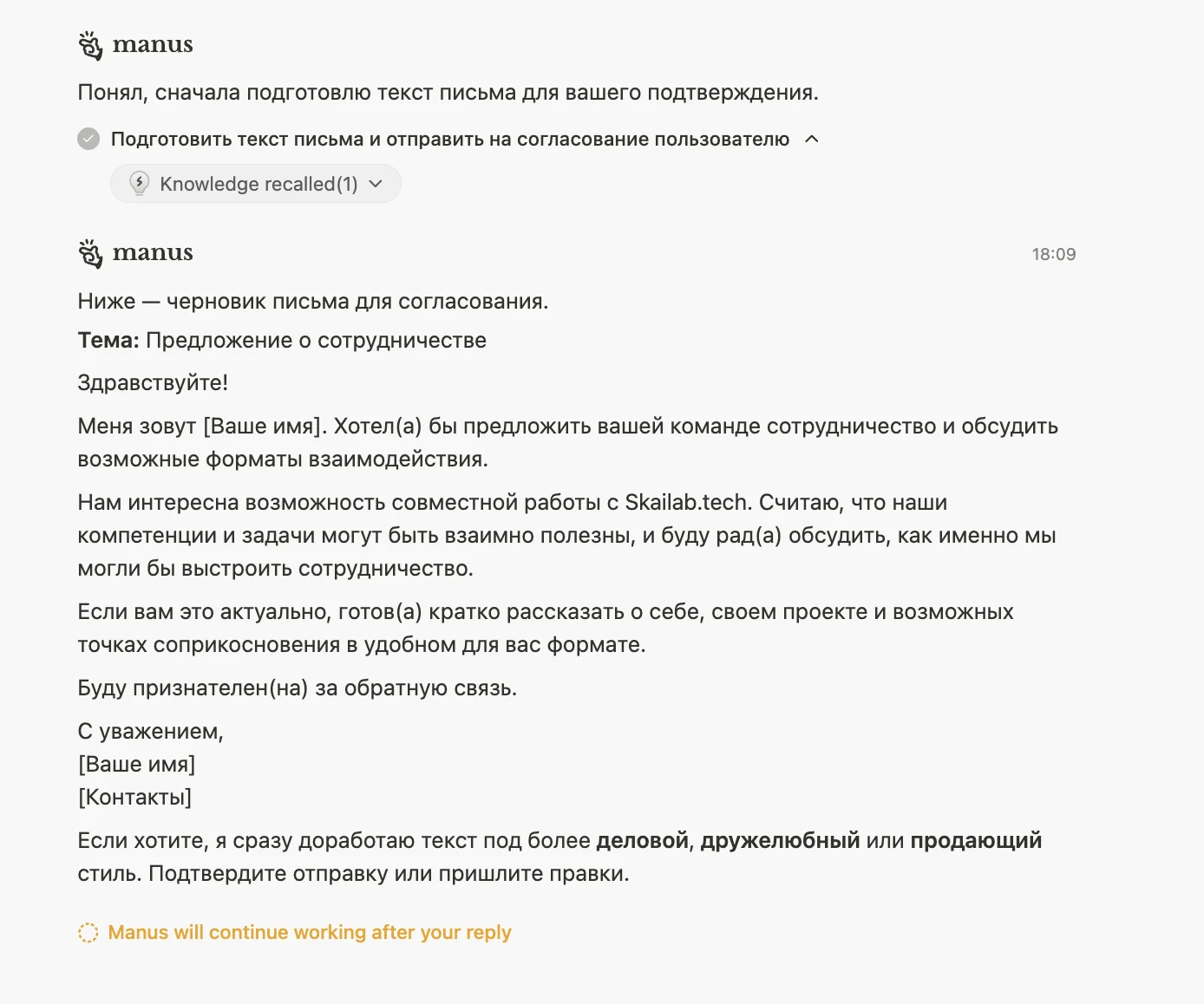
To enable HITL, explicitly tell the agent:
prepare the action → show the result → wait for approval → only then execute
What this looks like in practice
Include an explicit approval step when defining the task:
Example:
- “Prepare an email to the customer and send it to me for approval. Do not send it without my confirmation.”
- “Prepare the CRM changes, show the action and wait for approval before applying it.”
- “Compile the report and suggest actions, but do not execute them automatically.”
💡 Rule:
Any action involving money, customers or data must go through approval.
Skills in Manus
Skills package instructions and workflows for an AI agent. They record a tested way to perform a task: what to do, in what order, with which tools, under which constraints and in what output format.
A skill is essentially a module of expertise for the agent.
It can include:
- the task and scope of application
- step-by-step instructions
- best practices
- action templates
- additional resources and scripts.
Manus Skills use the open Agent Skills / SKILL.md standard. Manus can import skills, add them to its library and run them in its sandbox environment.
Why Skills matter
Skills help the agent:
- avoid solving the task from scratch every time
- follow a repeatable, tested workflow
- produce more consistent results
- get started on specialist tasks faster
- reuse accumulated expertise.
A skill turns a successful one-off workflow into a repeatable working process.
What a skill usually contains
A skill generally includes several components:
1. Task description
Defines:
- when to use the skill
- which tasks it suits
- which triggers activate it
- what falls within its responsibility.
2. Step-by-step instructions
Describe:
- exactly how to perform the task
- the order of steps
- preferred methods
- mistakes to avoid.
3. Technical components
May include:
- working code snippets
- dependencies and libraries
- resource files.
4. Best practices
Record:
- effective approaches
- accumulated rules
- working decision templates.
This makes a skill an executable or partly executable instruction package rather than merely a note.
💡 Practice:
If a task recurs 2+ times, turn it into a skill.
This provides:\
- consistency\
- speed\
- fewer errors
SkaiLab’s selection of relevant skills
• project-planner — structures complex projects by defining tasks, timelines and stages.
• lead-research-assistant — identifies potential customers and develops outreach strategies.
• startup-financial-modeling — develops 3–5-year financial models for startups.
• data-analyst — expert data analysis using SQL, pandas and statistical methods.
• content-creator — creates engaging content for publications and social media.
• visualization-expert — turns data into informative charts and diagrams.
• content-research-writer — supports content writing from research to final editing.
Where to find Skills in Manus
To work with skills in Manus, open your account settings.
Step 1. Go to Settings
Steps:
- Open Manus.
- Go to Settings.
- Find Skills in the left menu.
This contains the library of skills Manus can use.
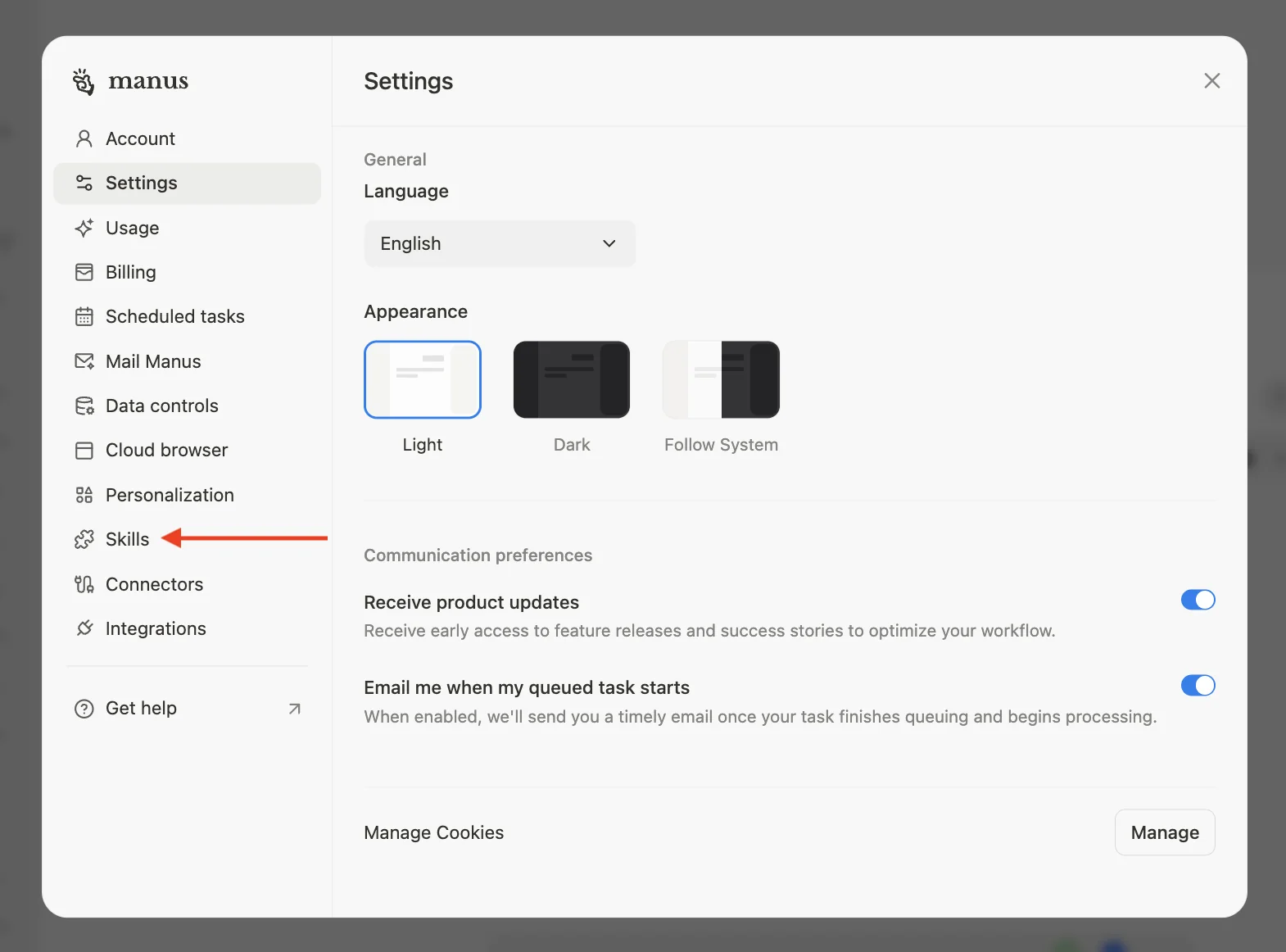
What appears in Skills
The Skills section usually shows:
- a list of available skills
- a skill search field
- filters
- an Add button
- each skill’s enabled or disabled status
- whether a skill is official or user-created.
Ways to use skills in Manus
Manus offers several ways to get started with skills.
Main options:
-
Use existing skills
These are already in the system or available through the official catalogue. -
Import an external skill
Upload a skill as a file. -
Create your own skill
Build a skill directly in Manus using its built-in skill-creator. -
Add a skill to Manus
Click Add in the Skills section to add a new skill.
Manus then usually offers several options:
- Build with Manus
- Upload a skill
- Add from official
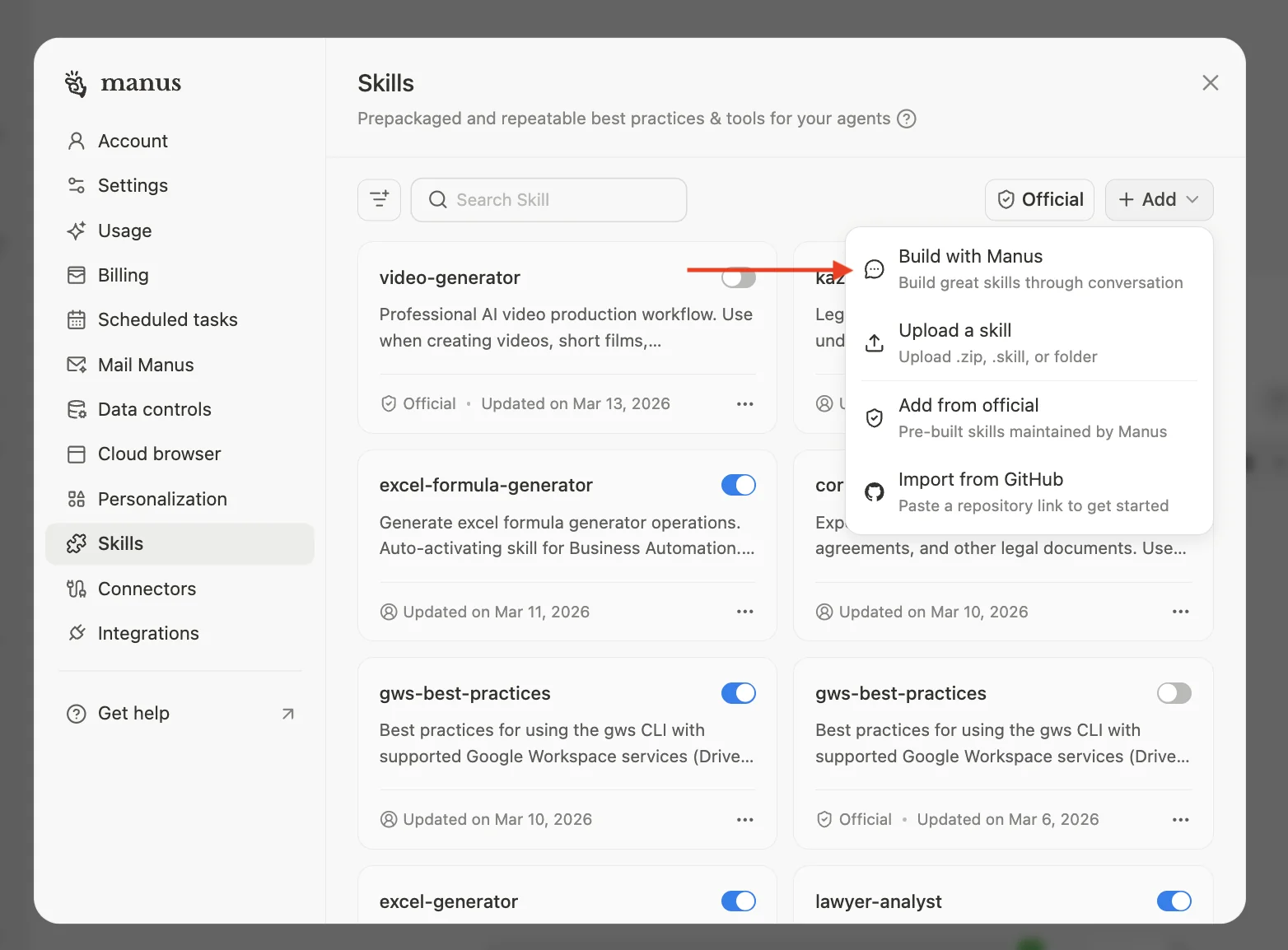
Let us examine each option.
Option 1: Add from official
This is the simplest way to start using skills. When to use it
This option suits situations where:
- you do not want to build a skill yourself
- you need a ready-made, maintained option
- you want to test how skills work quickly
- you do not need extensive customisation.
How to do it
- Open Settings → Skills.
- Click Add.
- Select Add from official.
- Find a suitable skill in the catalogue.
- Add it to your library.
- Enable it if it was not activated automatically.
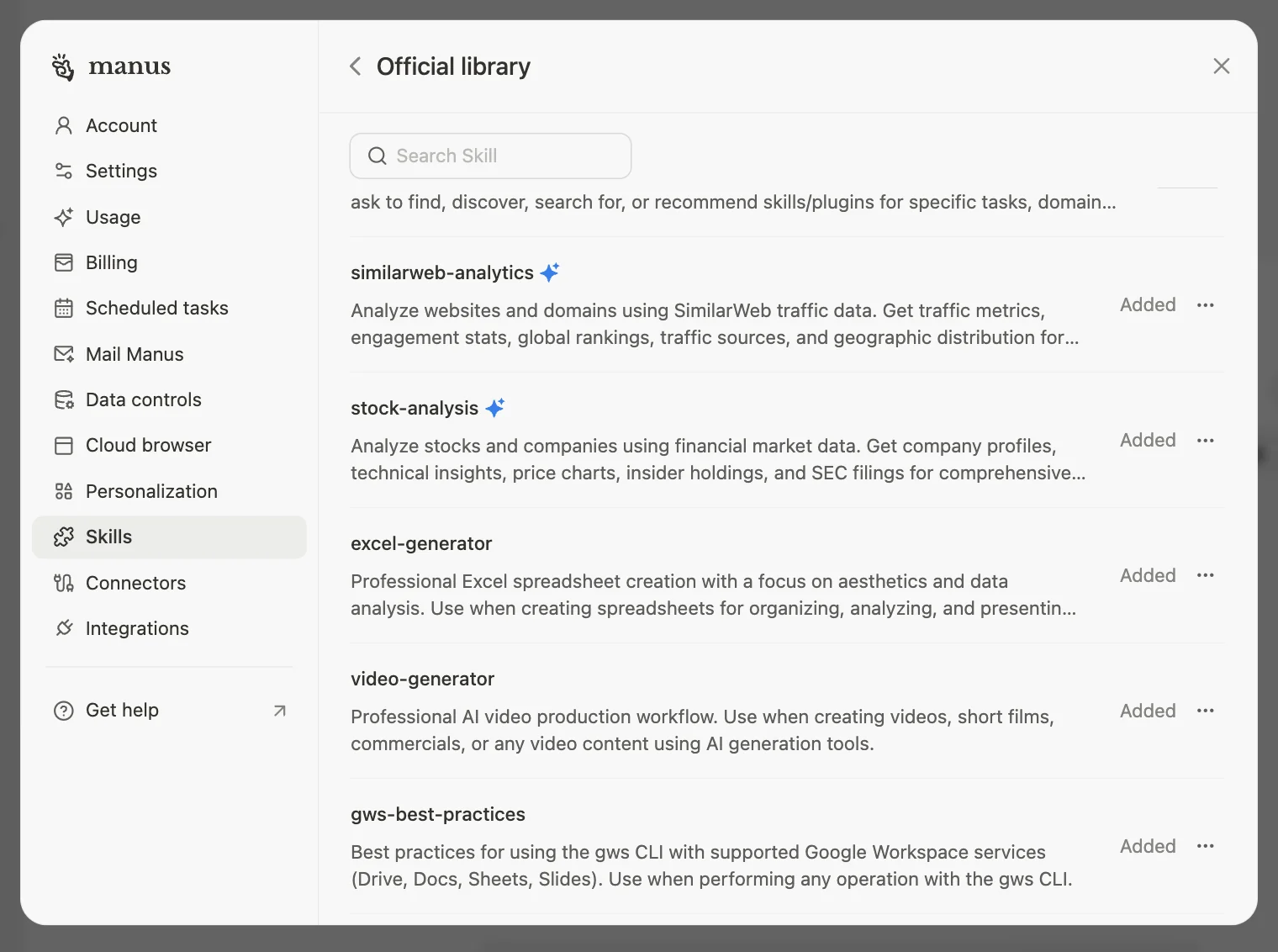
The skill will appear in the main list and Manus can use it. What to check after adding it
After import, check:
- whether the skill toggle is enabled
- the skill’s name
- its description
- which tasks it is intended for
- whether it conflicts with another process.
Option 2: Upload a skill
Use this when a skill is already downloaded and you want to upload it manually to Manus.
Manus supports several skill formats:
- .zip
- .skill
- a skill folder
A skill downloaded from an external marketplace, received from your team or built yourself can be uploaded directly to the Manus skills library.
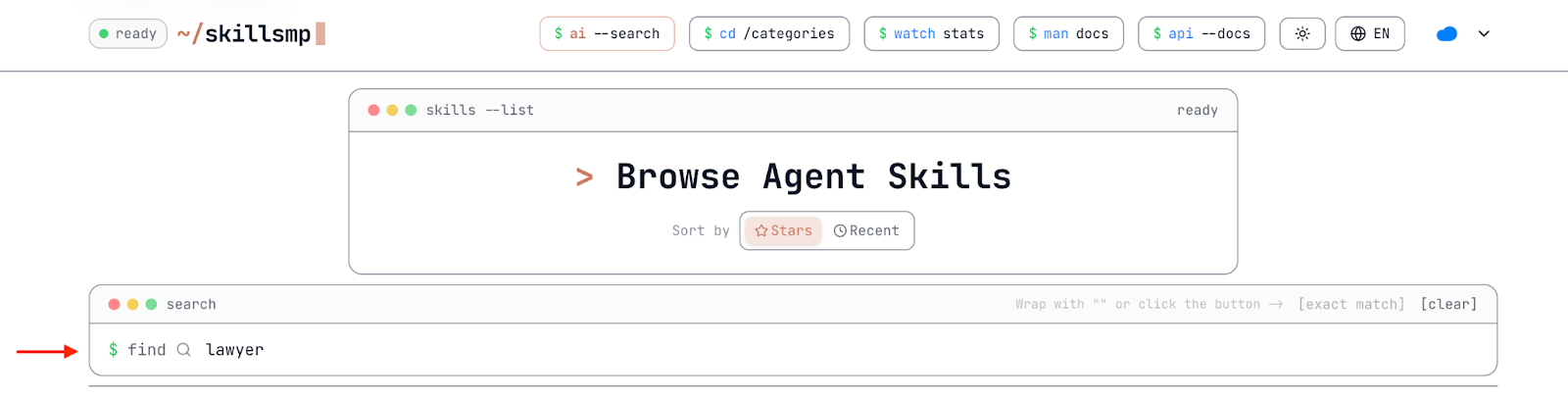
What is SkillsMP?
SkillsMP is an external agent skills marketplace collecting open skills from GitHub.
The platform lets you:
- search skills by keyword
- browse categories
- sort by popularity and recency
- open individual skill pages
- visit the source repository
- download skills for local use
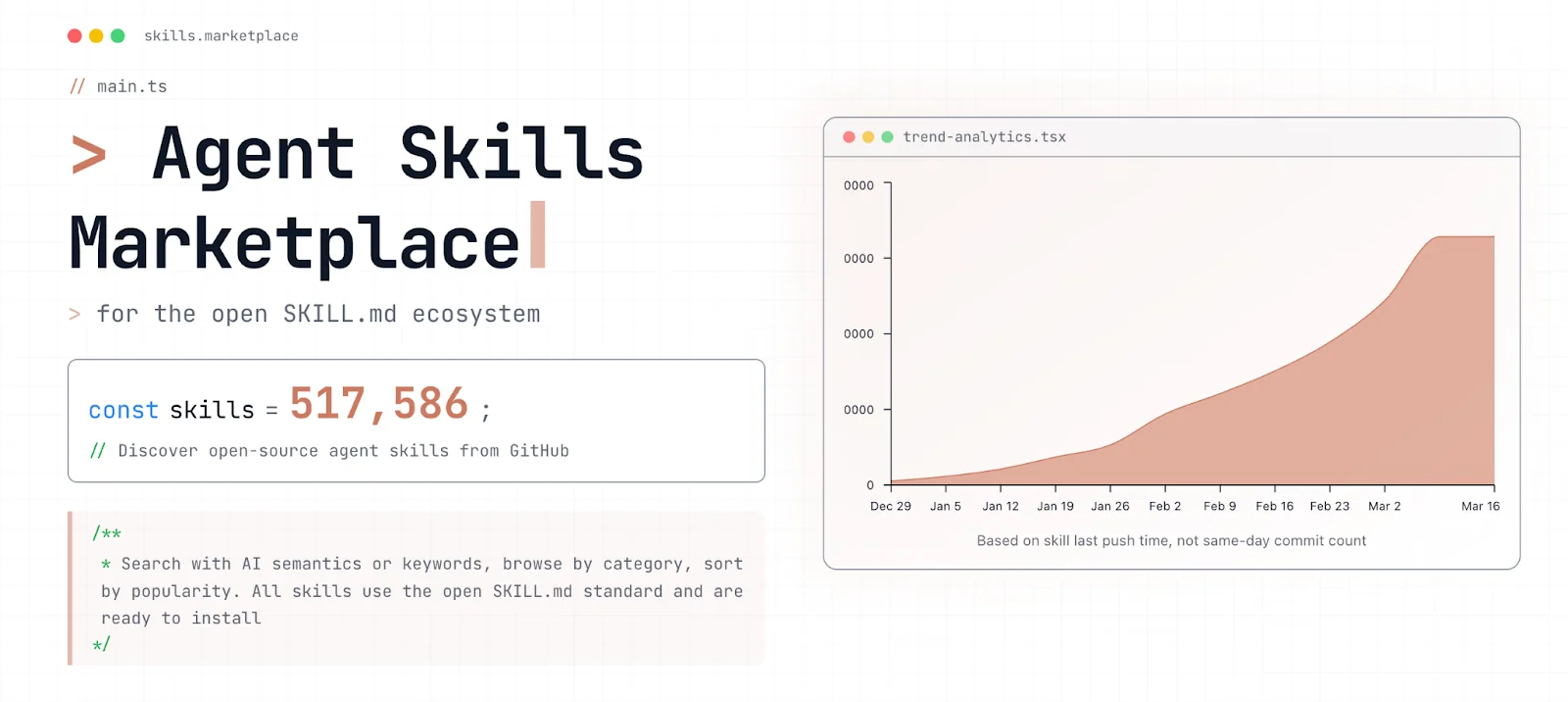
What you can do in SkillsMP
In practice, SkillsMP serves two purposes:
1. Find an existing skill
Search by keywords, for example:
- lawyer
- contract
- patent
- excel
- video
- research
The home page provides search, categories and sorting.
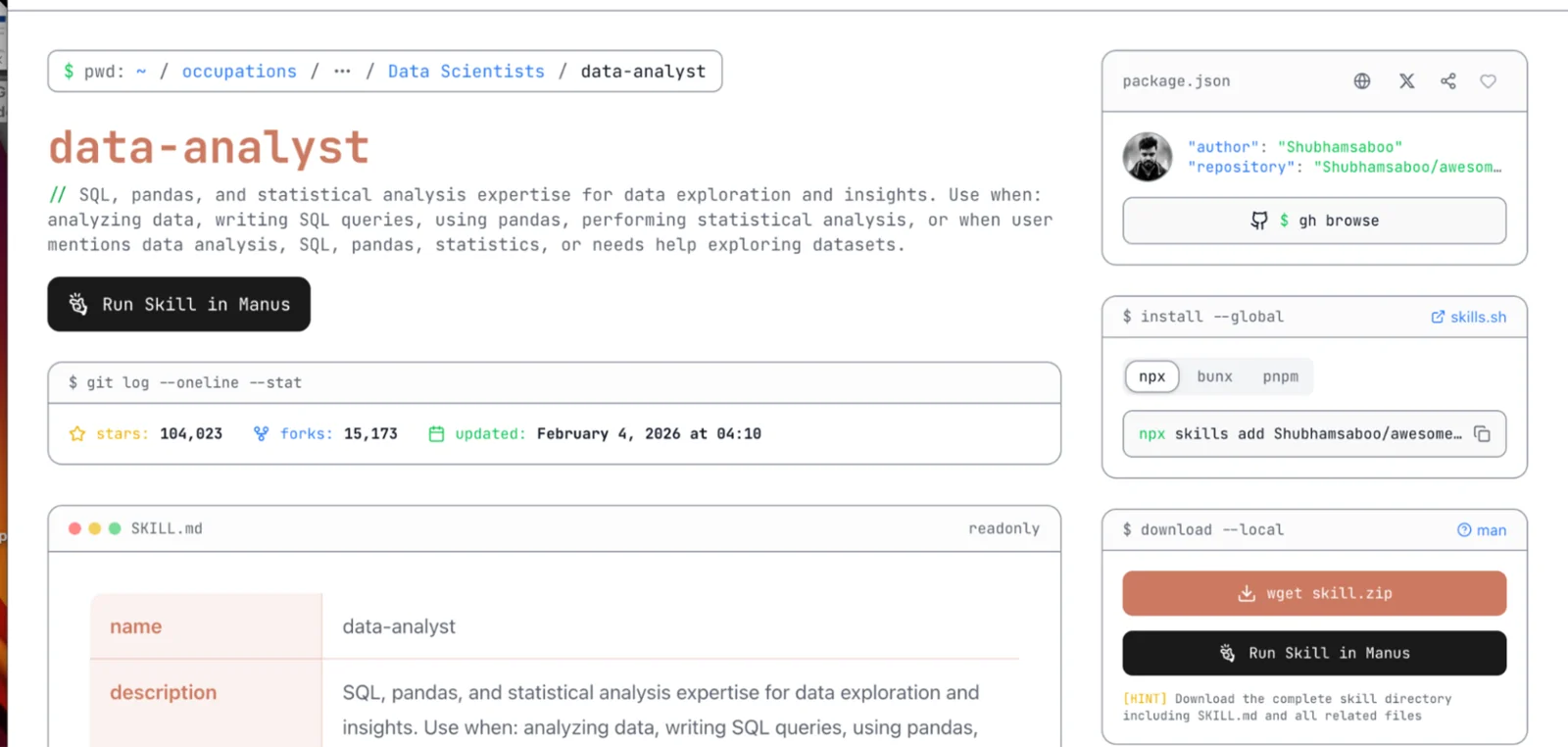
2. Download a skill for import
After finding a suitable skill, you can:
- open its page
- download a ZIP file locally or export it directly to Manus
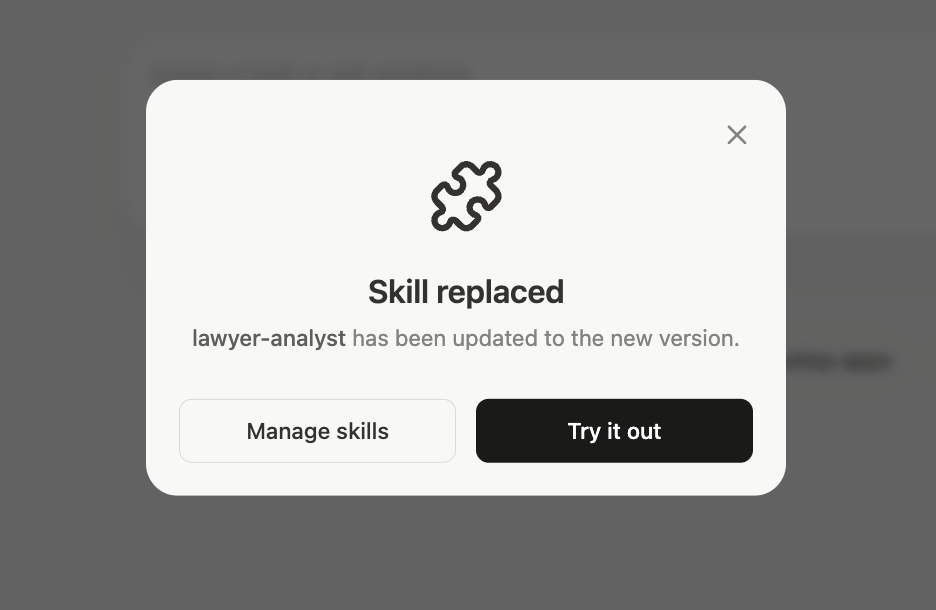
- then upload it to Manus.
Creating your own skills in Manus
This lets you create a custom skill within Manus.
It is useful when:
- no suitable skill exists
- an existing skill needs adapting to your process
- you need custom logic
- local requirements matter, such as Kazakhstan-specific rules or an internal company process.
How to start creating a custom skill
- Open Settings → Skills.
- Click Add.
- Select Build with Manus.
Manus starts the built-in skill-creator and builds the skill step by step through conversation.
Let us examine this in detail.
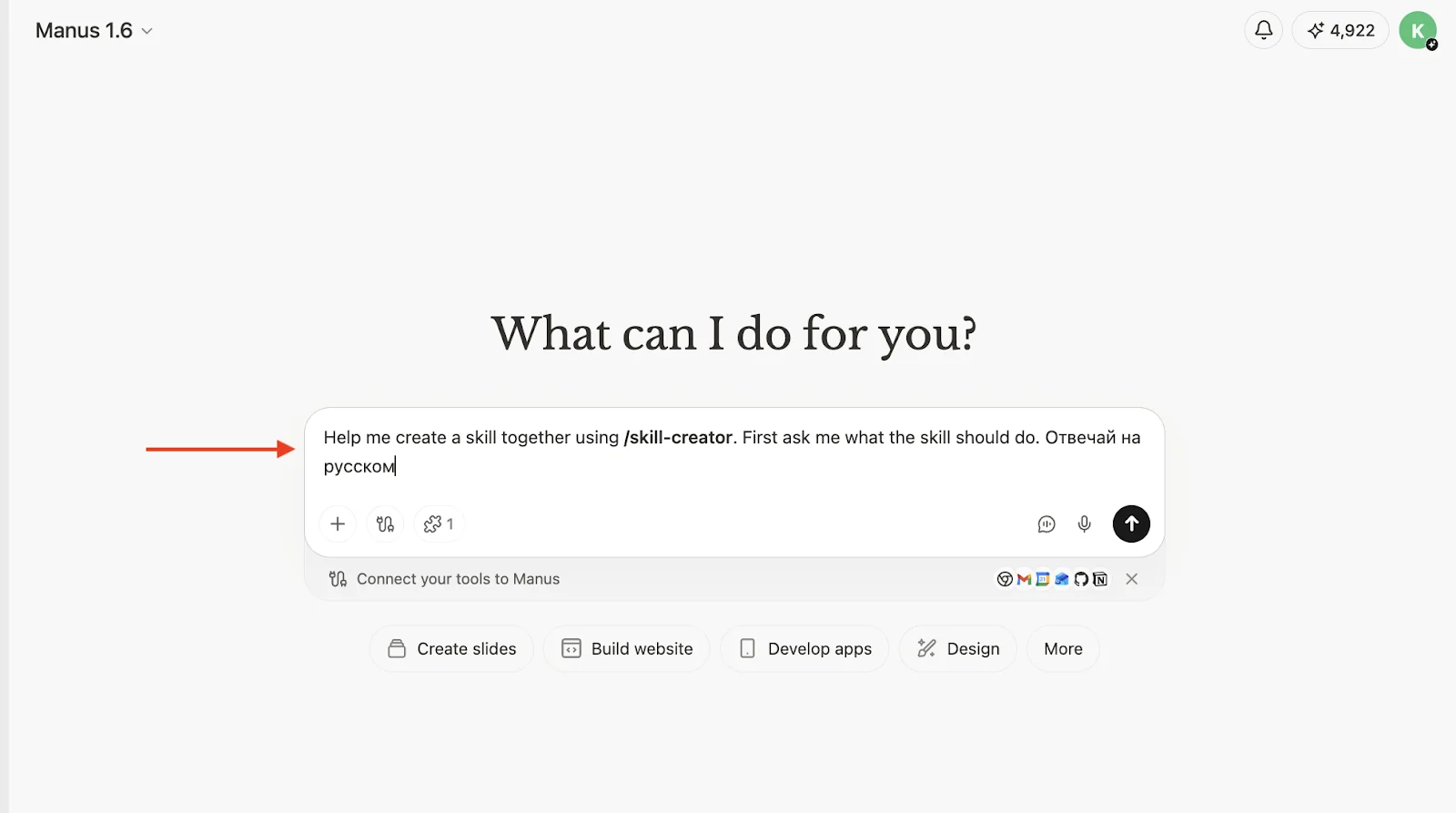
Step 1. Start skill-creator
After selecting Build with Manus, you can create a skill through conversation. You can also type a request such as: Help me create a skill together using /skill-creator. First ask me what the skill should do. Respond in Russian.
This is useful for specifying the language and format immediately.
Step 2. Describe what the skill should do
Manus asks:
- which task the skill should solve
- which actions it should perform
- when it should be used
- what result it should produce.
Avoid an overly general answer here.
Weak: “Make a legal skill.”
Better: “Create a skill for initial contract review under Kazakhstan law. It should extract key terms, identify legal risks, check mandatory provisions, suggest amendments and return a summary, risks, red flags and recommendations.”
💡 Important: A more specific task produces a better result. General instructions lead to inconsistent behaviour.
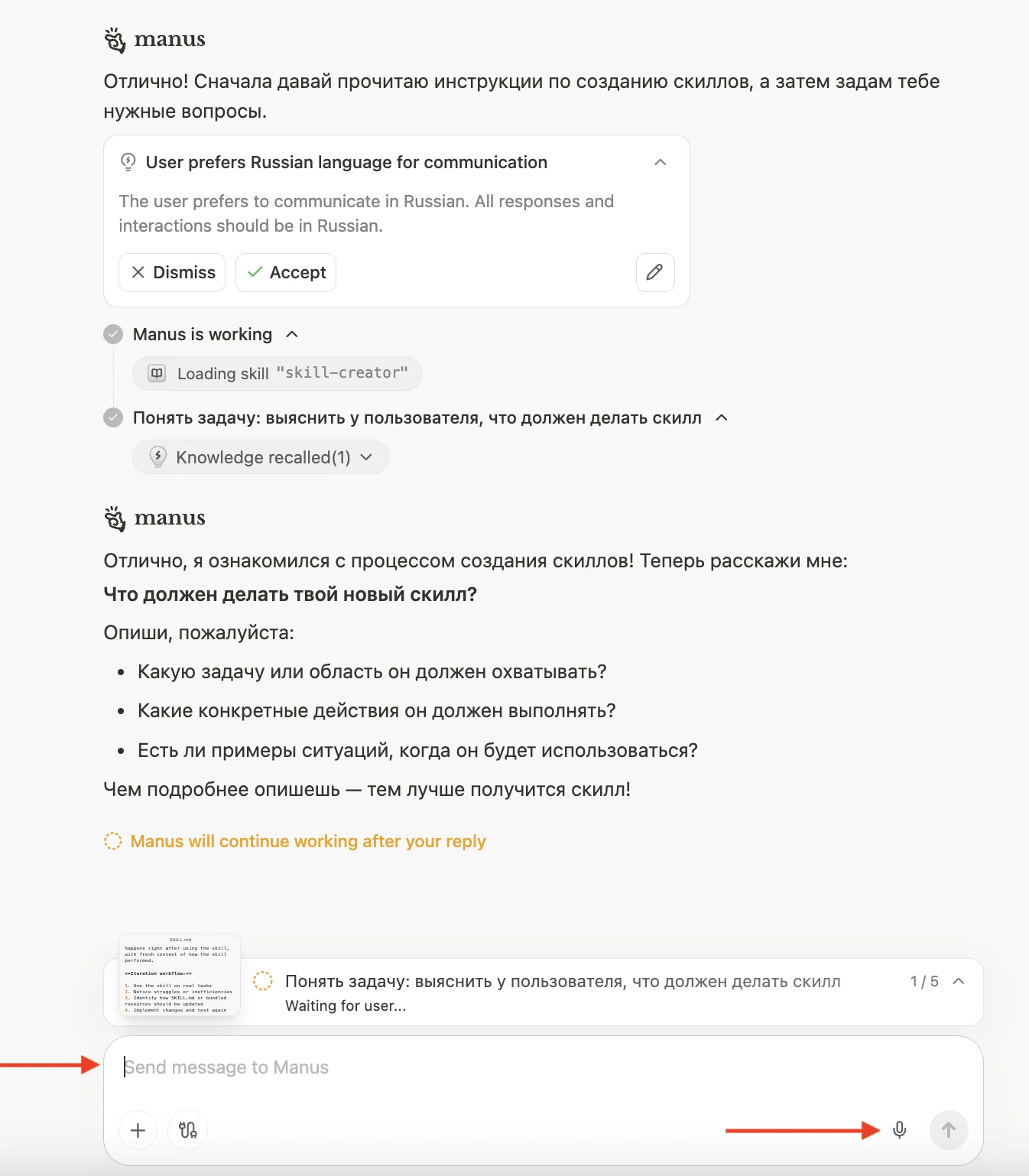
You can also use voice input to provide more information.
Step 3. Define input data
Explicitly describe what the skill works with.
For example:
- a PDF contract
- a DOCX document
- a text request
- a spreadsheet
- a website link
- a set of files.
Example: “The skill receives a contract in PDF or DOCX format.”
Step 4. Define the step-by-step workflow
Describe the process at this stage.
For example:
- identify the contract type
- extract key terms
- check mandatory provisions
- flag risky wording
- prepare recommendations
- return a structured result.
This is critical. The clearer the process, the better the skill.
Step 5. Define the output format
Specify in advance exactly how the skill should respond.
For example:
- a table
- a structured report
- a checklist
- a summary with comments
- problem → analysis → recommendation.
Example format
- Brief summary
- Key risks
- Wording comments
- Recommendations
- Items for manual verification
Step 6. Define restrictions and rules
This is essential. Specify what the skill must not do.
For example:
- do not invent legal provisions
- do not cite non-existent laws
- do not default to US law
- ask a clarifying question if information is insufficient
- label unverified conclusions as hypotheses.
Step 7. Define language and jurisdiction
If the skill needs a language other than English or local rather than general rules, specify this separately.
For example:
- respond only in Russian
- follow Kazakhstan law
- use legal terminology accepted in Kazakhstan
- do not mix local law with common law.
Step 8. Wait for the first version
Once Manus has collected the information, it creates a first draft of the skill. This is usually not final; test and refine it.
After adding the skill to the library, you can use it as a regular working module. Main ways to use it
Call the skill manually in chat
A skill can usually be called using /.
For example:
- /contract-review
- /skill-name
Manus then follows the selected skill’s logic.
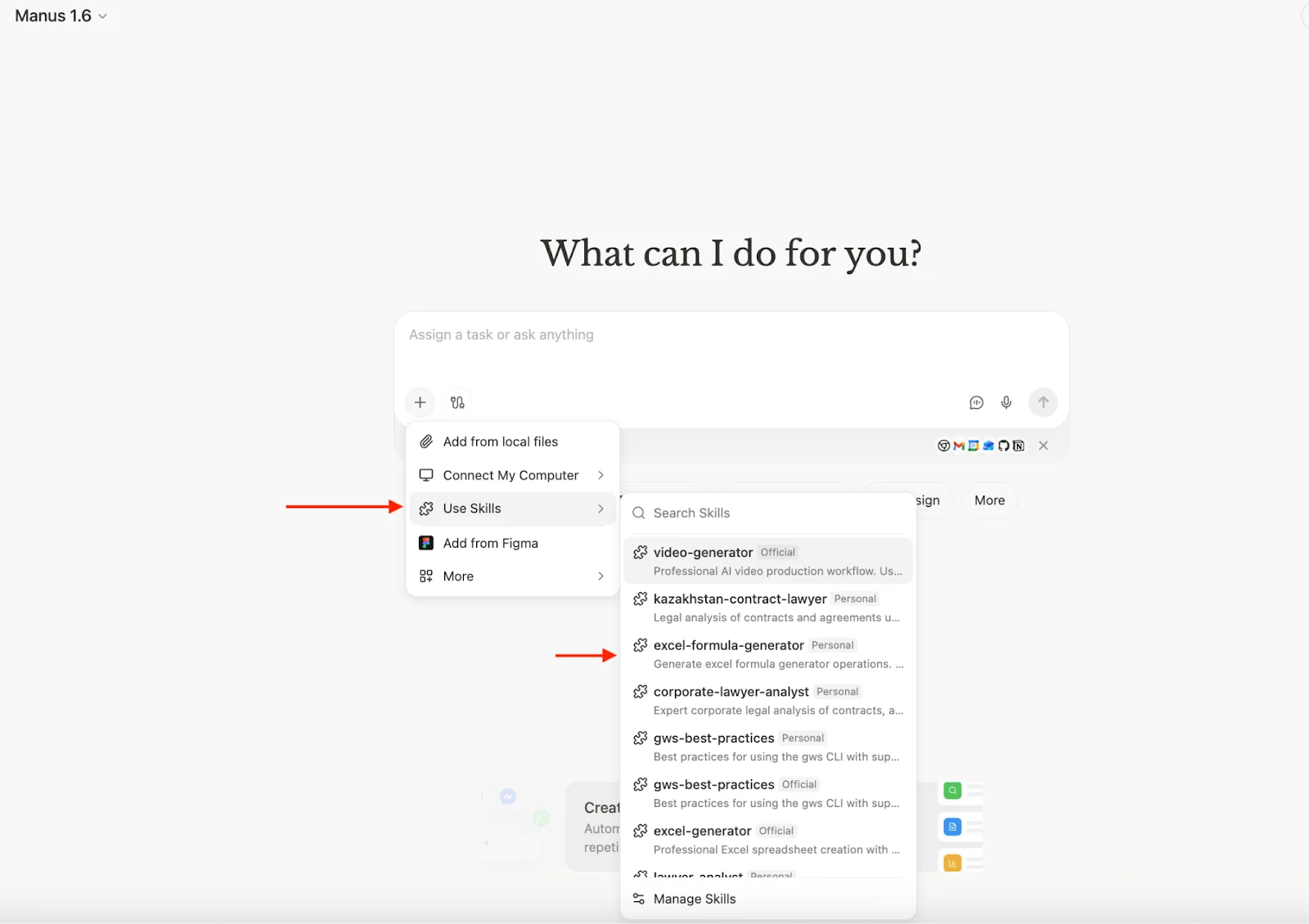
How to refine a skill
Editing skills is an important part of working with agents.
In practice, almost no skill is used unchanged. After installation, it usually needs adapting to:
- the specific task
- the business process
- the language
- the jurisdiction
- the response format
- the required depth of analysis.
A skill therefore usually goes through several stages:
- import
- structure analysis
- editing
- testing
- refinement.
Here is a detailed outline of the process.
All editing happens in:
Settings → Skills
This shows the complete skill library:
- official
- imported skills
- user-created skills.
Open any skill to inspect its structure. Each installed skill in Manus has a context menu (⋯) for running, editing, replacing or deleting it.
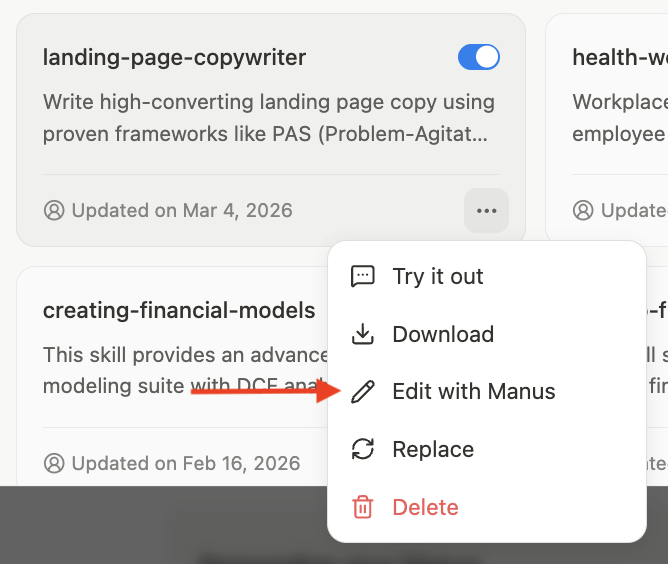
The screenshot shows one of the most important options: Edit with Manus
After selecting Edit with Manus, edit the skill through conversation. The /skill-creator tool helps modify its structure.
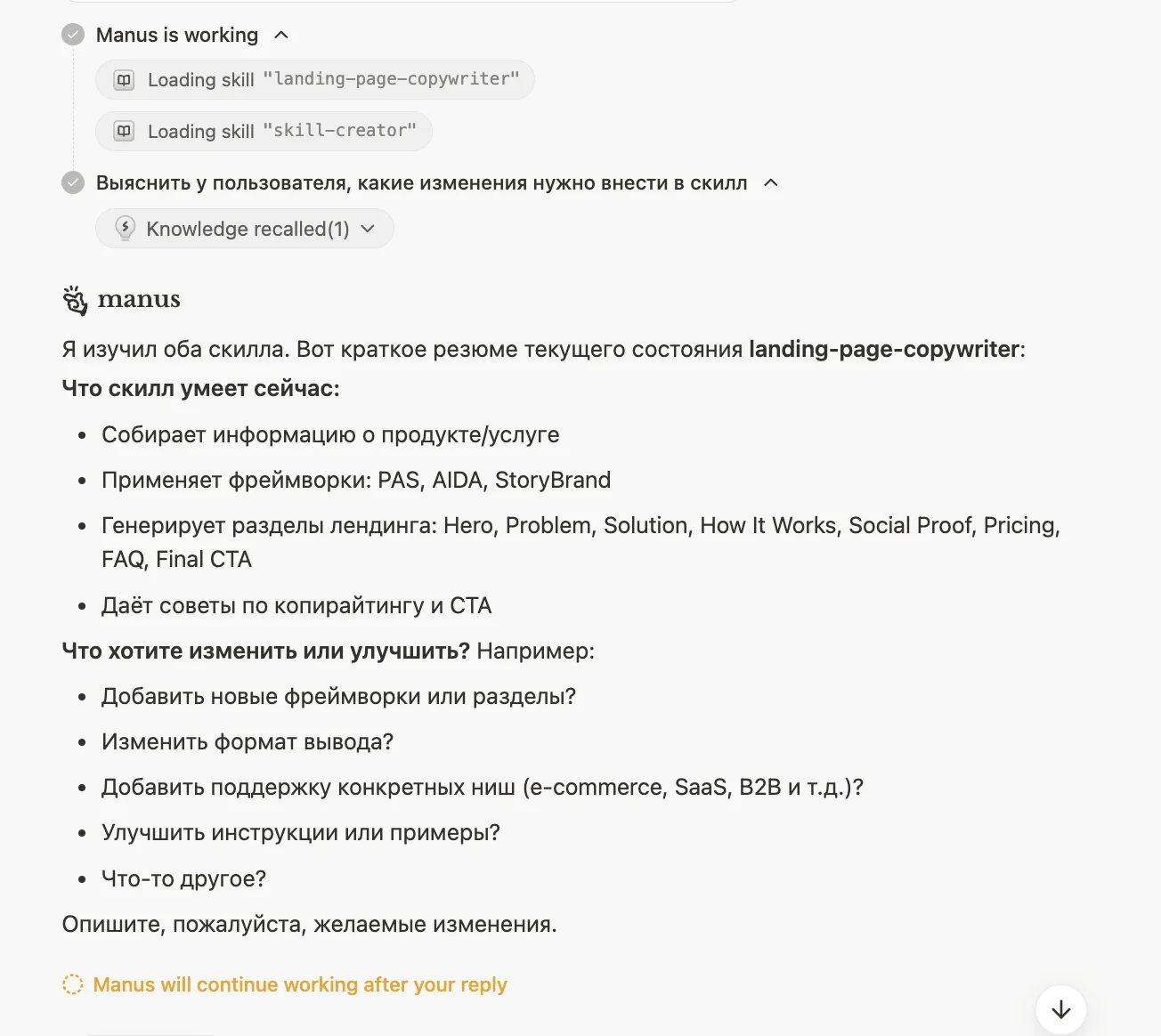
The screenshot shows the first step: starting the editing process with a text command.
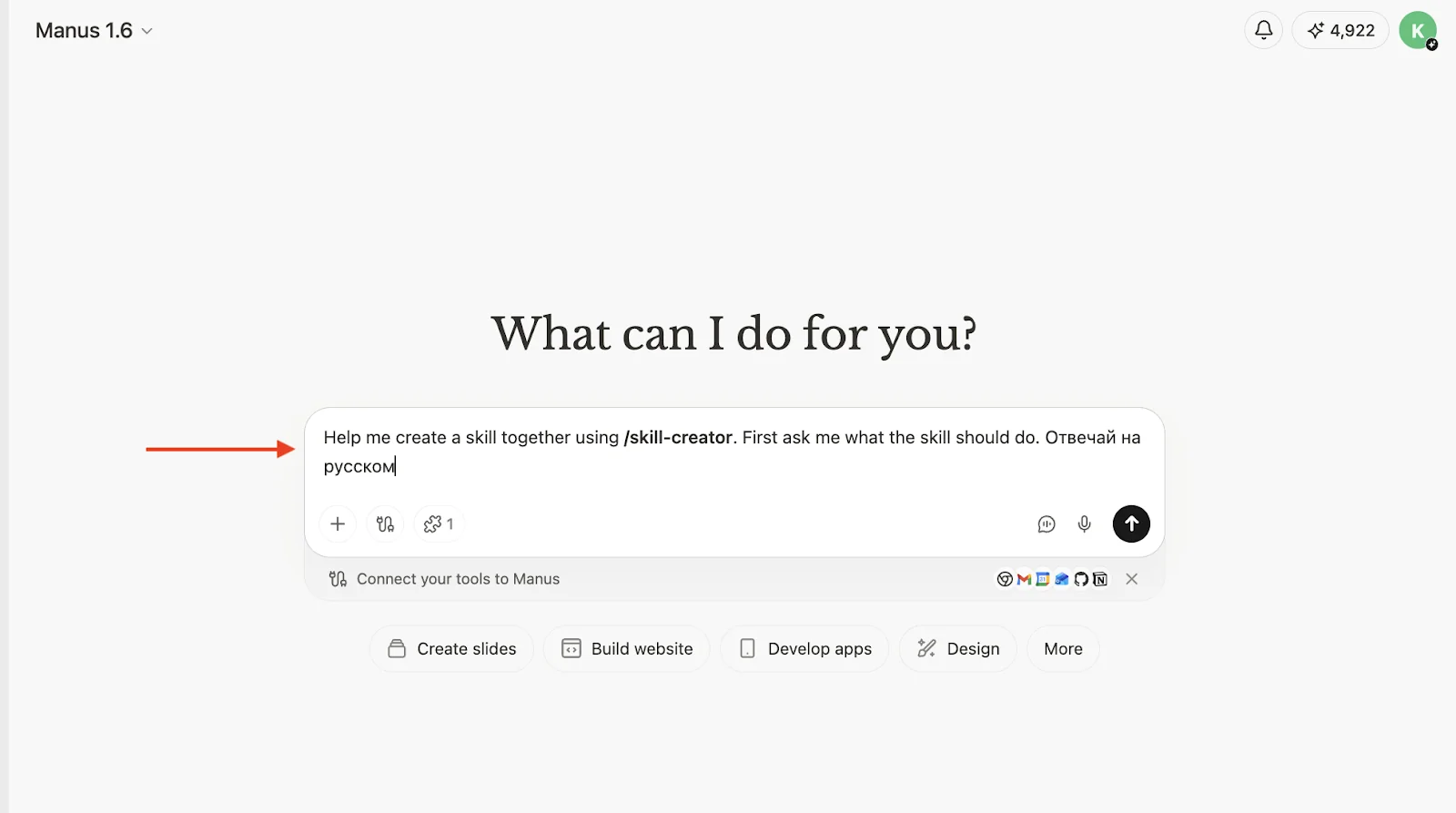
After /skill-creator starts, the system first analyses the existing skill.
Manus:
- reads SKILL.md
- analyses the structure
- identifies its purpose
- checks the workflow
- identifies the response format.
It then establishes the editing context and asks clarifying questions.
Using Manus from Russia: VPN and payments
Does Manus work without a VPN in Russia?
As of early 2026, Manus’s interface and core features are accessible in Russia without a VPN; the service is not blocked by Roskomnadzor. The website and agent work normally.
⚠️ Important
However, some connectors, including Google Drive, Gmail, Google Calendar, Meta Ads Manager and Instagram, use infrastructure of services blocked in Russia. A VPN is needed for reliable operation. Without it, connections may be unstable or fail entirely.
Payments from Russia: specific methods. Manus does not accept Russian bank cards directly. Options below run from simplest to most complex.
Method;Service / tool;Details
Payment intermediary (simplest);global-payments.ru, payholder.ru;Specialise in paying for foreign services from Russia and Belarus. Submit a request → pay in roubles through the Faster Payments System or by card → subscription activates. They operate officially and guarantee refunds. Fee approximately 7% plus exchange rate. Virtual foreign card;WISE, Revolut,Payoneer;Register online and link the card to Manus normally. WISE and Revolut are available to Russian citizens with a foreign address or through an intermediary. CIS card;Cards from banks in Armenia, Kazakhstan, Georgia and Belarus;The most stable option for recurring payments. Open in person or through agents. Works directly without intermediaries. Corporate card;A company account in a foreign jurisdiction;Suitable for businesses with a UK/EU/UAE legal entity. Pay through the corporate account without restrictions.
**💡**Tip
The fastest start is payholder.ru or global-payments.ru: payment through the Faster Payments System takes 10 minutes, and the subscription activates immediately. For regular use, an Armenian or Kazakh bank card is more convenient, with no intermediaries or commissions.
💡 Practice:
If you plan to use Gmail, Google Drive or Meta, include a VPN in your infrastructure from the start.
Organising enterprise use of Manus
How the credit system works
Manus uses a credit model rather than unlimited use for a fixed fee. Every agent action — web search, file work, slide generation or coding — consumes credits. More complex tasks consume more.
Practical estimates:
- Simple request, such as information search or a short summary: about 10–30 credits
- Medium task, such as collecting several sources or a structured report: up to 200 credits
- Complex task, such as comprehensive research, a presentation or multistep automation: 500 credits
In addition to the monthly pool, each account receives 300 daily credits that reset the next day, providing a daily allowance for routine tasks.
Unused monthly credits expire at the end of the billing period and cannot be saved for later.
Plans and pricing
Plan;Cost;Monthly pool;Intended users
Free;$0;300 credits/day (lite mode only);Exploration and initial tests Pro — basic;Approximately $20/month;4,000 credits + 300/day;One user, regular work Pro — extended;Approximately $39/month;8,000 credits + 300/day;Active user, many tasks daily Pro — maximum;Approximately $200/month;40,000 credits + 300/day;Intensive use and extensive research Team;$39/seat/month, minimum 5 seats;Shared pool of approximately 19,500 credits;Corporate teams
Annual billing offers a discount of about 17%.
What the Team plan offers beyond credits
The Team plan changes the management model:
- Shared credit pool — one team balance instead of separate individual limits. Managers see overall consumption.
- SSO (Single Sign-On) — sign in with corporate accounts without creating separate passwords.
- No training on your data — company data is not used to train the model, a key requirement for enterprise use.
- Team analytics — who consumes credits, how many and for what.
- Internal access control — permissions within the organisation.
- Shared templates — consistent task and slide templates for the whole team.
Recommendation: where to start
A common launch mistake is buying an enterprise plan for the whole team before understanding actual usage. Credits are consumed faster than expected, so first measure how many tasks each department will perform monthly.
We suggest this rollout:
- Step 1 — Pilot for 1–2 months. A department head or designated pilot user takes the $20/month Pro plan. Record real workflows and their credit usage before automating everything. Are 4,000 monthly credits enough, or do they run out by week three?
- Step 2 — Assess consumption. The pilot provides concrete figures: the average task costs X credits, and the department expects Y monthly tasks. Calculate the required allowance.
- Step 3 — Scale. If the pilot demonstrates value, move to Team with the required seats. At 5+ users, the price remains $39 per seat, the same as extended Pro but with enterprise management features.
💡 Common mistake: scaling immediately to the whole team. The right approach: 1–2 users → pilot → measurement → scale.
A practical budget guide
For a team of 10 with moderate usage of 2–3 complex tasks per person weekly, a realistic minimum budget is $200–$400 per month. This is an initial planning estimate; precise figures follow the pilot.
Account structure
The basic principle is a separate, isolated Manus Organization for each department. IT, Product, Commercial and HR each have their own organisation, with no data overlap. Commercial employees cannot access IT tasks even when both use Manus. Each organisation has Admin roles for settings and access management, and Member roles for employees. Seat count is set when the organisation is created.
Integration management
Three strict principles apply. First, read-only access: external integrations are connected only in read-only mode, and employees cannot add or change them independently. Agentic AI with write access to company systems presents a serious risk. Second, an allowlist: every department has an explicitly approved list of tools and APIs; everything else is unavailable. Third, request-based expansion: each new integration or workflow requires an explicit request describing the task. No unapproved additions.
Defining workflows
A common agent rollout mistake is starting with technology instead of a task. First define what should be automated, then consider systems and integrations.
Describe each workflow with three elements: what to do, which systems are involved and how often. Example: “Collect invoice attachments from email, save them to Drive and name each file by recipient, number and amount. Gmail + Google Drive, automatically once a day.” This clarifies the data involved and required connections. Vague descriptions such as “automate email work” do not allow risks or integration scope to be assessed.
After workflows are defined, the Admin creates the Organization, connects only required integrations and grants access. Anything outside the approved list remains unavailable until a new request.
Why this model works
It addresses two opposing enterprise AI problems. First, tools go unused because access is too difficult; basic tools are enabled for everyone without requests. Second, unrestricted employee use creates data leak risks; more powerful tools are strictly allowlisted and read-only. The result is controlled adoption: everyone can access what they need for work while risky access is restricted.
If you still have questions
It is normal to have questions about implementing Manus in your business after reading this guide.
In practice, the main challenges are:\
- which processes to automate first\
- how to configure workflows correctly\
- where there will be real ROI
We review these questions in the context of your tasks. Submit a request on the SkaiLab website, email info@skailab.tech, or connect with us on LinkedIn.
We will review:\
- your current processes\
- where automation has potential\
- which tools fit, including options beyond Manus\
- where to start for the fastest results
And provide a specific implementation plan for your task.
Your order
You can pay for the guide in roubles or with an international card